Designing a PCB is much more than drawing copper traces.
A complete PCB development process normally includes:
Requirements → Schematic → Components → PCB Layout → DRC → 3D Verification → Manufacturing Data → Prototype → Testing
Autodesk Fusion Electronics connects the schematic, 2D PCB, and 3D PCB within its electronics design workflow.
This article walks through a simple PCB development process from an engineer’s perspective.
1. Start With a Simple Project
For the first project, let’s design a simple 5V controller board.
The board could contain:
-
- DC input
-
- Voltage regulator
-
- Microcontroller
-
- LED indicator
-
- Push button
-
- Communication connector
-
- Programming connector
A simplified architecture would be:

The purpose of this project is not to create a sophisticated industrial controller.
The goal is to understand the complete PCB design workflow.
2. Create the Schematic
The first actual design step is the schematic.
The schematic defines:
-
- Components
-
- Electrical connections
-
- Power rails
-
- Signal names
-
- Component values
-
- Design intent
It does not primarily describe where the components physically sit on the PCB.
Fusion separates the schematic and PCB layout tasks while maintaining their relationship.
For example:
DC IN
│
├── C1
│
▼
REGULATOR
│
├── C2
│
▼
+5V
│
▼
MCU
At this stage, concentrate on whether the circuit is electrically correct.
3. Select Components Carefully
One of the most important PCB design decisions is component selection.
For example:
Resistor
You need to determine:
-
- Resistance
-
- Power rating
-
- Package
-
- Tolerance
Capacitor
Consider:
-
- Capacitance
-
- Voltage rating
-
- Dielectric
-
- Package
-
- ESR when important
IC
Check:
-
- Operating voltage
-
- Current consumption
-
- Package
-
- Temperature range
-
- Pin configuration
-
- Recommended PCB layout
This is where an engineer’s component knowledge becomes more important than the CAD software itself.
4. Select the Correct Footprint
This is one of the most common beginner mistakes.
The schematic symbol and the physical PCB footprint are different things.
For example:
Schematic
R1
10 kΩ
│
▼
PCB
0603 resistor
The schematic tells you:
“This is a 10 kΩ resistor.”
The footprint tells the PCB software:
“This is the physical package and pad geometry used to mount the resistor.”
An incorrect footprint can result in a PCB that is electrically correct but physically impossible to assemble.
5. Create the PCB
Once the schematic is ready, create the PCB layout.
Fusion’s official workflow creates the PCB from the schematic and transfers the associated components into the PCB environment.
The basic process is:
Schematic
↓
Create PCB
↓
Define Board Shape
↓
Place Components
↓
Route Traces
↓
DRC
6. Define the Board Shape
Now determine the physical size of the PCB.
For example: 80 mm × 50 mm
You may also need:
-
- Mounting holes
-
- Connector openings
-
- Board edge restrictions
-
- Keep-out areas
-
- Enclosure constraints
This is where Fusion can be particularly useful if the PCB is part of a mechanical product.
Autodesk provides a workflow for creating a PCB outline from a mechanical sketch and linking the board to the electronics design.
7. Place Components
Component placement is one of the most important engineering decisions.
Don’t simply place components wherever there is empty space.
Consider:
Power section
Keep high-current power paths short.
MCU
Keep:
-
- Decoupling capacitors close
-
- Crystal/oscillator connections short
-
- Sensitive signals away from noisy power sections
Communication connector
Place the connector where it can be easily accessed from outside the enclosure.
Programming connector
Make sure the programmer/debugger can physically connect after the PCB is installed.
8. Power Routing
Power traces deserve special attention.
Suppose a circuit requires:
5 V / 2 A
A very narrow PCB trace may create unnecessary voltage drop and heating.
A simplified relationship is:VDROP=I×RV_{DROP}=I\times R
Therefore, reducing PCB resistance can reduce voltage drop.
Resistance depends on:
-
- Trace length
-
- Trace width
-
- Copper thickness
-
- Temperature
For high-current circuits, trace width should therefore be determined from the actual design requirements rather than simply using the default CAD settings.
9. Ground Plane
A ground plane can provide a low-impedance return path and can simplify PCB routing.
A simplified two-layer board might use:
TOP
────────────────────────
Signal + Components
────────────────────────
BOTTOM
████████████████████████
Ground Plane
████████████████████████
However, a ground plane does not automatically solve every EMI or signal-integrity problem.
You still need to consider:
-
- Current return paths
-
- High-speed signals
-
- Analog signals
-
- Switching regulators
-
- Connector locations
-
- Noise sources
10. Routing the Signals
Now connect the components.
The PCB software shows the connections that still need to be routed.
The basic process is:
Component → Pad → Trace → Via → Layer → Trace → Pad
For example:
MCU
│
├────────────── RS-485
│
├────────────── LED
│
└────────────── Sensor
KiCad also provides interactive routing and tools such as shove and walkaround routing, together with DRC support.
The same basic engineering principles apply regardless of which PCB software you use.
11. DRC — Design Rule Check
After routing, run DRC.
DRC stands for:
Design Rule Check
It checks the PCB against defined manufacturing/design rules.
Examples include:
-
- Minimum clearance
-
- Trace width
-
- Unconnected nets
-
- Hole sizes
-
- Copper-to-edge clearance
-
- Other layout constraints
Fusion provides DRC tools and allows manufacturing rules to be established before completing the layout.
But remember:
Passing DRC does not mean the circuit is electrically correct.
DRC checks rules.
The engineer still needs to verify the design.
12. 3D PCB Verification
This is one of the most useful steps when the PCB will be installed inside a product.
Look at the PCB in 3D.
Check:
-
- Component height
-
- Connector location
-
- Mounting holes
-
- Enclosure clearance
-
- Cable access
-
- Heat-generating components
-
- Display/button alignment
Fusion creates a 3D PCB representation from the PCB design and can connect that design with mechanical work.
This is where the ECAD-MCAD relationship becomes particularly useful.
13. PCB + Enclosure
Imagine the final product:
ENCLOSURE
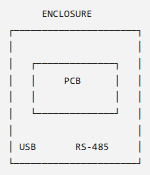
The PCB may work perfectly electrically but still fail because:
USB connector doesn’t align with enclosure
or
PCB mounting hole doesn’t match the mechanical boss.
This is one reason integrated ECAD-MCAD workflows can be valuable.
14. Manufacturing Data
The final design must be converted into information that a PCB manufacturer can use.
Typical outputs include:
-
- Gerber files
-
- Drill files
-
- BOM
-
- Pick-and-place files
-
- Assembly documentation
Fusion’s electronics workflow supports manufacturing outputs including Gerber, ODB++, pick-and-place, netlists, BOM and documentation.
Autodesk also identifies Gerber and drill files as standard PCB manufacturing outputs.
15. Prototype
Never assume that the first PCB will be perfect.
The typical engineering cycle is:
Design
↓
Prototype
↓
Test
↓
Find Problems
↓
Modify Design
↓
New Revision
↓
Production
This is normal engineering development.
16. What Should You Test?
For a controller board, I would create a test checklist.
Power
-
- Input voltage
-
- 5 V rail
-
- 3.3 V rail
-
- Current consumption
MCU
-
- Reset
-
- Clock
-
- Boot sequence
-
- Programming
Communication
-
- RS-485
-
- CAN
-
- UART
-
- USB
Digital signals
Check:
-
- HIGH
-
- LOW
-
- Rise time
-
- Fall time
-
- Noise
Analog
Check:
-
- Sensor voltage
-
- ADC input
-
- Reference voltage
An oscilloscope becomes particularly useful here.
17. Real-World Engineering Lesson
This is where your own engineering experience can make the article different from a typical beginner PCB tutorial.
In one of my controller development projects, I experienced an intermittent startup problem caused by an unstable power reset signal.
Under certain unstable power-input conditions, the controller did not start correctly.
I modified the power-reset circuit and changed the boot-control signal design so that the relevant signals had a defined logic state during startup.
This experience reinforced an important lesson: PCB design is not only about making the electrical connections. Power stability, reset behavior, signal
definition, and startup conditions must all be considered.
- PCB Design Software for Small Businesses and Personal Projects: KiCad, Autodesk Fusion, and More – PowerTechGuide
- PCB Trace Width and Current Calculation: A Practical Guide – PowerTechGuide
- PCB Ground Plane: Why It Matters for Signal Integrity and Power Stability – PowerTechGuide
- How to Design a PCB Power Supply Section – PowerTechGuide
One Response